Sensitive Materials Training
Graded, scenario-based interactive training.

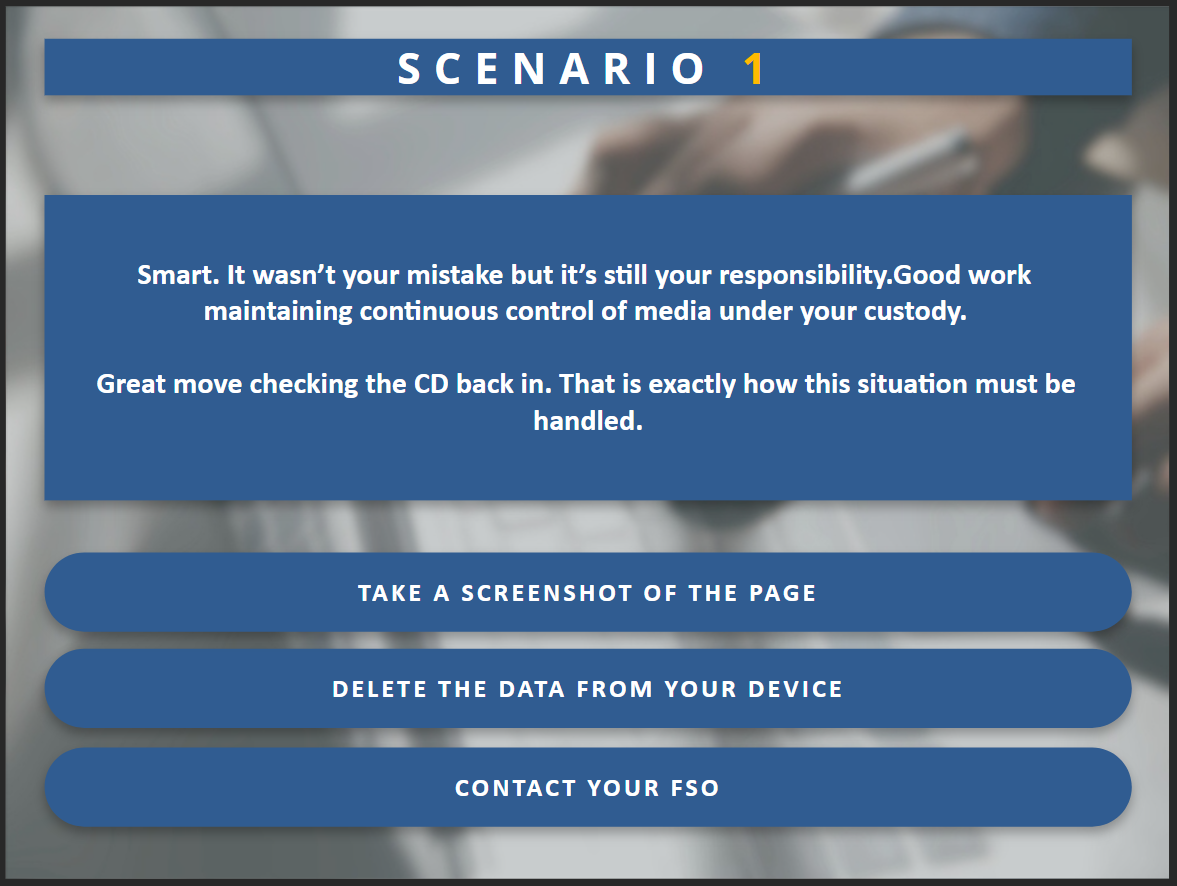
Sensitive Materials Training is a branching, scenario-based training application designed to assess a learner’s understanding of proper handling procedures for classified and sensitive data. The system was built in Articulate Storyline 360, with additional JavaScript used to implement custom scoring logic and adaptive feedback. It emphasizes clarity, structure, and detailed feedback, focusing on learning and explanation.
This project was developed as a representative training system, focusing on realistic scenarios, decision-making, and feedback mechanisms used in regulated environments.
Key Features
Branching, decision-based structure with dynamic feedback
Three scenarios based on real-world experience
Scoring system that evaluates decisions and outcomes
Custom JavaScript for adaptive text generation and scoring logic
Clean interface designed for modern corporate or government training environments
Design and Implementation
Built in Articulate Storyline 360, with external JavaScript used to extend scoring logic and feedback behavior
Scenarios reflect real situations the learner is likely to find themselves in
End-of-scenario summaries provide detailed explanations, allowing learners to understand why decisions were correct or incorrect
Interface designed to remain visually and functionally consistent across slides, even as new interaction types are introduced
Progressive scoring system driven by weighted decision values
Performance summaries generated from tracked decision paths
Challenges and Problems Solved
Allowing Multiple Actions Before Progression
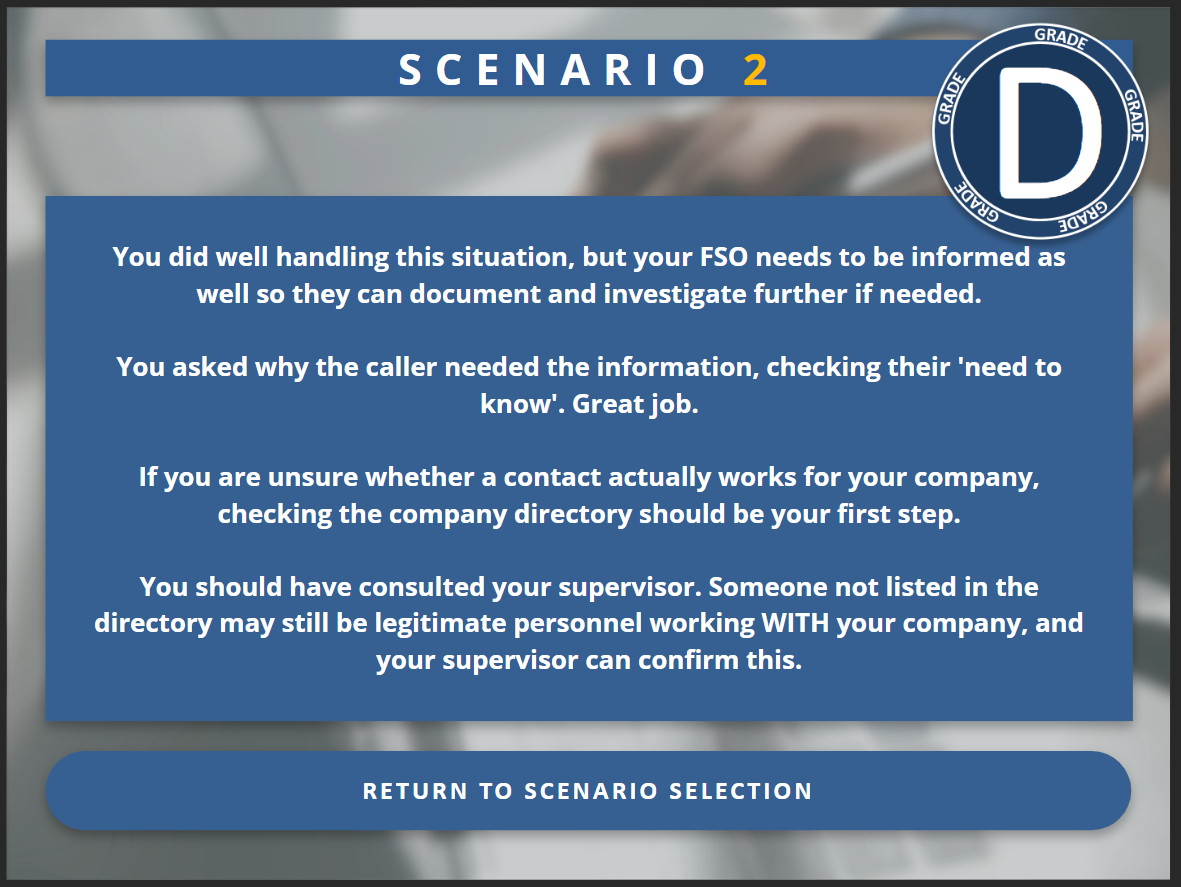
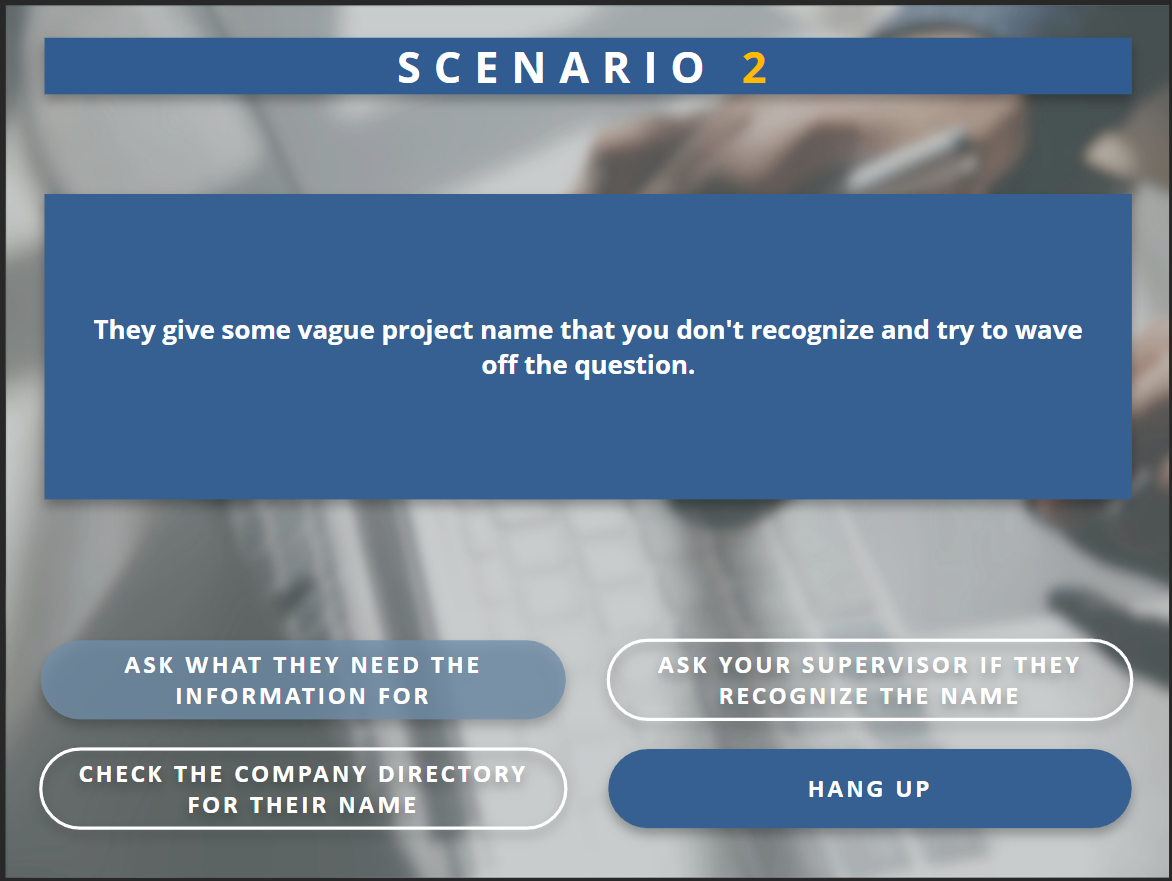
Scenario 2: Unknown Contact presented a unique challenge in that it had to allow the learner to perform multiple actions before progressing in the scenario; most decision-based trainers follow a forward-only model, they rarely circle back or linger on one slide, and Storyline 360 primarily supports that model.
One possible solution was to route each action to a separate slide and then return the learner to the original scenario. However, this approach introduced several problems. It significantly increased the number of slides, creating additional content that provided feedback but no meaningful interaction. It also complicated the scene graph with looping paths, making the structure harder to manage. Second, moving to a new slide feels like advancement or progression, and I specifically did not want a sense of progression until the learner had performed the actions they thought necessary and chose to continue. The nature of the scenario also required that the user be able to perform the actions in any order, without suggesting a proscribed sequence or introducing too much guidance.
Rather than advancing the learner to new slides and creating a false sense of progression, I treated the scenario as a stateful interaction within a single slide. User actions were tracked as state, and the interface, including text and button states, updated dynamically in response. The underlying logic for tracking user actions had already been implemented for scoring, so it could be reused here to manage the slide interface.
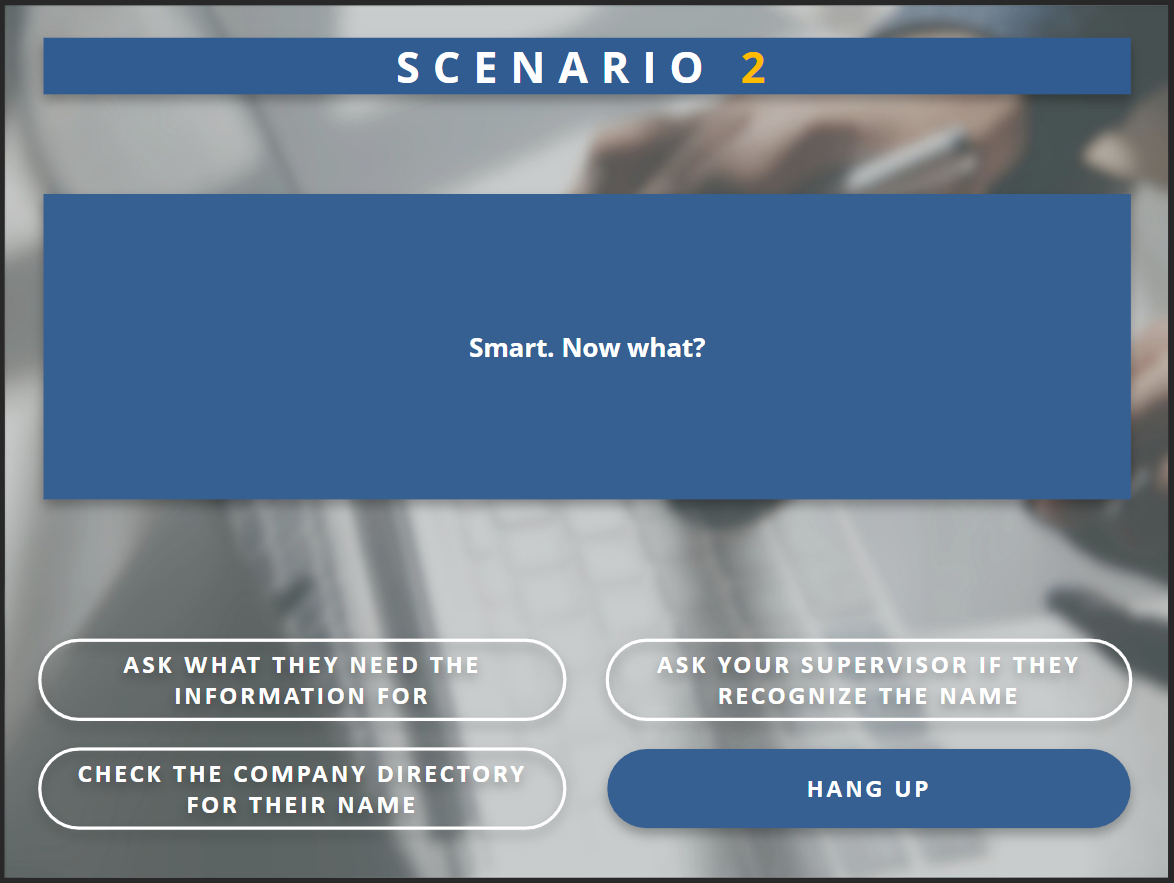
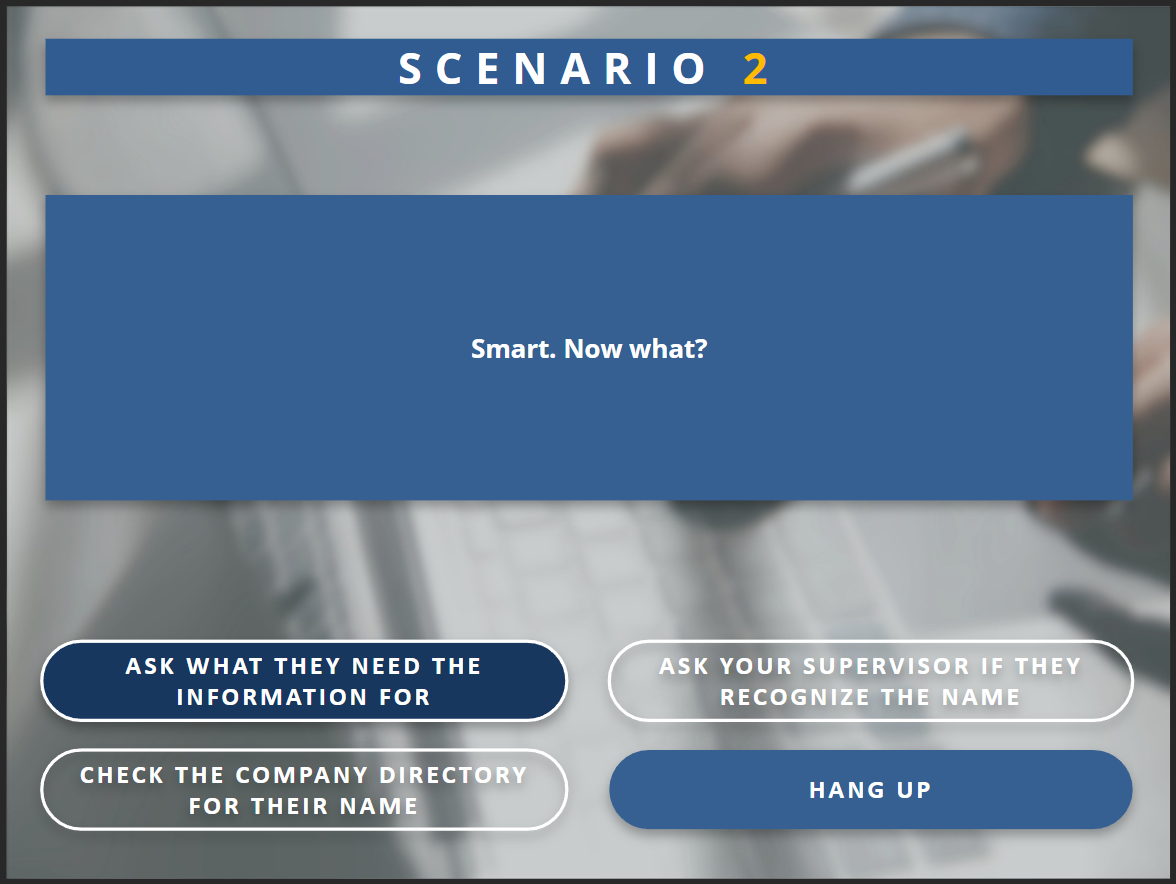
In addition to the interaction design challenge, this scenario introduced a UI problem. The slide required a checklist-style interaction, where multiple actions could be selected before continuing. The controls needed to feel familiar and clearly indicate interactivity, while also signaling behavior different from standard navigation buttons. Traditional checkboxes were not a good fit, as they conflicted with the established visual style.
The solution was to design buttons that matched the existing shape and color system, but changed state visually: transparent when inactive, and filled with a muted version of the standard button color when selected. This allowed the interaction to feel consistent with the rest of the interface while still clearly communicating its different behavior.
JavaScript Implementation
While Articulate Storyline 360 includes an internal JavaScript editor, it has several limitations that make it difficult to manage larger or more complex code. To work around this, I used external JavaScript files that are loaded at runtime, using Storyline’s internal editor only to reference and call functions from those files. This allowed development in a full-featured JavaScript environment and kept the codebase separate from the Storyline project.
This approach introduced additional challenges. External scripts needed to be referenced via <script> tags in the root HTML file, and the JavaScript files had to exist within the exported project’s folder structure. However, Storyline overwrites the root HTML file on each export, removing any manual changes.
To address this, the working JavaScript files were maintained outside the project structure and copied into the export directory after each build. The required <script> tags were then reinserted into the root HTML file as part of this process.
This workflow could be further improved by automating these steps using a batch or scripting solution, reducing manual overhead during export.
Try the training yourself: